
How to download and enable VPN

Follow the steps below to download and enable VPN access.
Step 1. Log in to portal.bch.no
Not sure how?


Step 2. Navigate to Utilities in the menu
- Click on VPN Client Configuration
Step 3. Download Script
Make sure you select the correct script based on your operating system.
- See further instructions below for Windows / Apple OS X


Windows Users
Running the script and connecting to the VPN on Windows
1. Right-click the downloaded file 'bcvpn..ps1'
2. Click on 'Run with PowerShell'.
- PowerShell should show on your screen for a second, and the VPN should be installed.
- If prompted for anything, press “Y”.
You can now connect to the VPN either from network settings menu, or by clicking on the wifi icon in the toolbar menu on the bottom right.
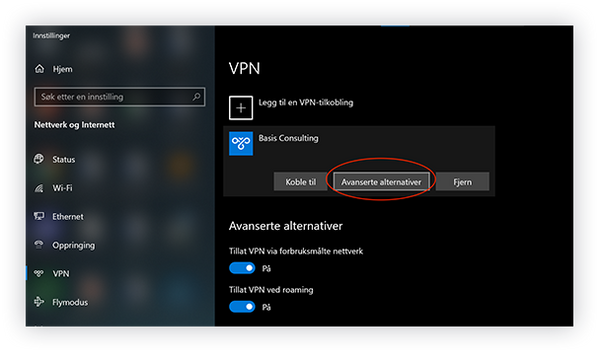

Windows Users - Tips
If you don't want to be prompted for username and password every time you connect to the VPN, click on advanced options and then edit.

Enter username and password (same as login to portal) and save.
Apple OS X
Run the script and connect to VPN
